I know it sucks right? Open your internet just to read books? So I have found a solution for that, but this is experimental and only a few books are available
How to install
Step 1:Make sure you have enough storage.
Make sure you have enough storage by checking your settings. My recommended storage space is <500MB of free storage
Step 2: Download all the necessary applications.
Make sure you have downloaded all the applications needed, if you haven't here are the links required to download one:
Download Zarchiver (For Android only)
Download WinRaR (For Windows only)
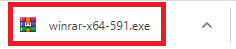
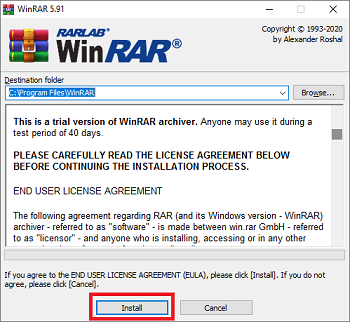
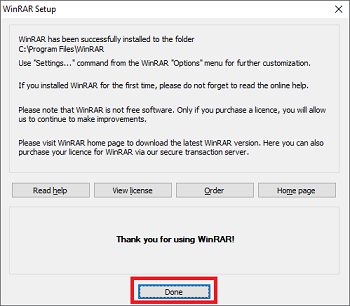
If you download WinRAR and found a Window showing buy WinRAR, don't buy it, select download WinRAR and save it
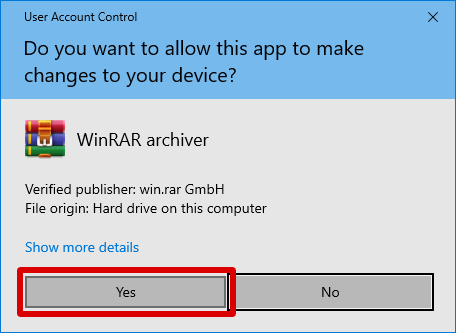
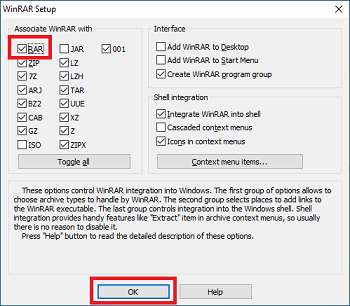
Follow the image below for WinRAR installation
 Step 3:Refer to the table below after you have read the whole installation guide
Select the specific book you want to download on the table
Q: Wait, why are there only a few books? Where's my grade level?
A: As of now, I have only access to our grade level's book, if you would like to contribute,comment down below to reach me out
Step 4: Download your e-book's grade level
Download the e-book by clicking the download button, after clicking the download button, a tab will open and wait for it to load. After it loads, you'll see a different website, click continue to rshrt.com/x ,where x is the specific e-book grade and subject.
Step 5: Wait 8 seconds
Wait for 8 seconds after clicking continue, you'll see a bunch of ads and notification request, close all of those request and don't click any of them as this sites are fraudulent and scam sites. IF A GET LINK BUTTON APPEARED WHILE THE 8 SECONDS TIMER IS NOT OVER, IT'S FAKE AND THE REAL BUTTON ONLY ARREARS AFTER THE TIMER!
Q:
Wait, then why do you want us to use that site full of scams?
A: This sites shows ads that pay me, doing so is counted as a contribution of my efforts :)
Step 6: Downloading... After the 8 seconds counter finished, click continue and you'll be redirected to the download site. Click download and the download will begin shortly. Go grab a coffee or do something else while waiting for the download to finish but don't close the Google Chrome or your browser as this will cancel the download
Step 7: Download finished After the download finished, click open on the download and a system dialog showing a menu of apps and two buttons (Just once , Always). Click Zarchiver(Android only).
WinRAR will open if the download finished or a Windows dialog telling you to choose WinRAR or other applications, choose WinRAR (Windows 10 only)
Step 8: Extracting the zip files
After you've opened the files, just extract it by following the images here:
Method for Android (Scroll down for Windows guide)
Method for Windows
Step 9: Enjoy reading your book fully offline
Ok, so yeah enjoy reading your book offline. Unfortunately, it doesn't support bookmarking or any searching features which is available on a Genyo site :( If you
have any questions, ask them in the comments section and I'll answer them one by one


![How to get free AdGuard license keys [2020]](https://blogger.googleusercontent.com/img/b/R29vZ2xl/AVvXsEi5Y5NI_kazIvUlOFV8aHeHinAIvyHS_pGgz_buHwktiL3wB60o13JlYs7iuQOG5QOG5YZqnuuV4-fbH4stZ9a0U1XF_Thnd8-hraJK1vVD-cH1rCfhECMaPLWBMqBMaWiMuNApDN5TgYPU/w680/Screenshot+%252831%2529.png)
1 Comments
Magcomment naman kayo
ReplyDelete